In this guide
Dorsova only gives back what you put in. A rushed note today makes a thin brief next week. This is how I use it so the brief is something I trust, the history shows real change, and anyone on the team can pick up my notes.
If I had to boil it down to one habit, it’s recording the same things the same way, every session. That’s what turns a pile of single notes into a client’s story.
Before the session
Read the brief every time
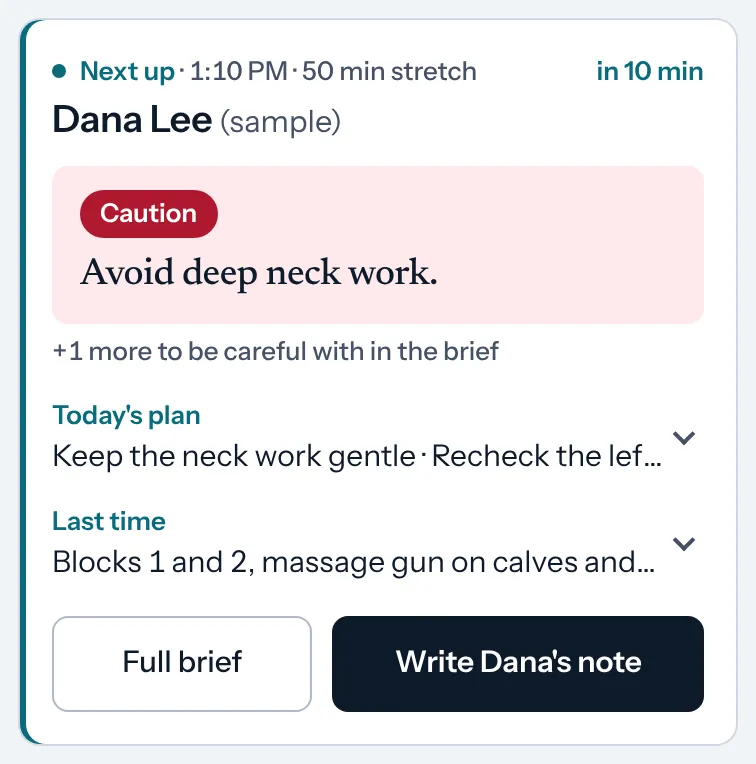
Tap the client on Today, or Full brief on the Next up card. It takes about 30 seconds. (What I look at, and in what order, is in what I check before every session.) I read it even for my regulars, because somebody else may have seen them since I did.
You can read it One at a time or as Everything on one page. The parts always come in the same order:
- Avoid. Their injuries, surgeries and precautions, with your caution level and the avoid lines. This is always first. If it says Ask about injuries and surgeries, nobody’s asked yet, so ask before you start.
- Plan for today. What last time’s Next time said to do, and what to Ask about. Once you’ve asked, tap Asked so it doesn’t keep coming back.
- Last time. Where they were tight, what was done, how they responded.
- Why they’re here. Their goal, in their words.
When the session’s done, tap Write Dana’s note (the button carries your client’s name). It opens the note; there’s nothing to start.
Keep injuries and cautions current
On the client’s profile, under Injury & surgery history, tap + Add injury or surgery.
- Pick from the library when you can. Search the 104 researched injuries and surgeries. If theirs isn’t there, use Add “…” as written, in the client’s words.
- Set when it happened. Pick the year, and the month if they know it. The year can be an estimate. The date is what lets Dorsova suggest what to avoid and a caution level and show the recovery stage they’re in and how long it’s been.
- Read the stage page. Switch between Hands-on and Training for the version that fits your work.
- Write avoid lines as movements. “Twisting or torque at the knee” works. “Bad knee” doesn’t. The note check reads these lines, so it needs a movement and an area.
- Ask about clearance. “Has their doctor or PT cleared stretching here?” Ask the client, then tap Yes, cleared, Not yet or They don’t know, and it records the answer with the date.
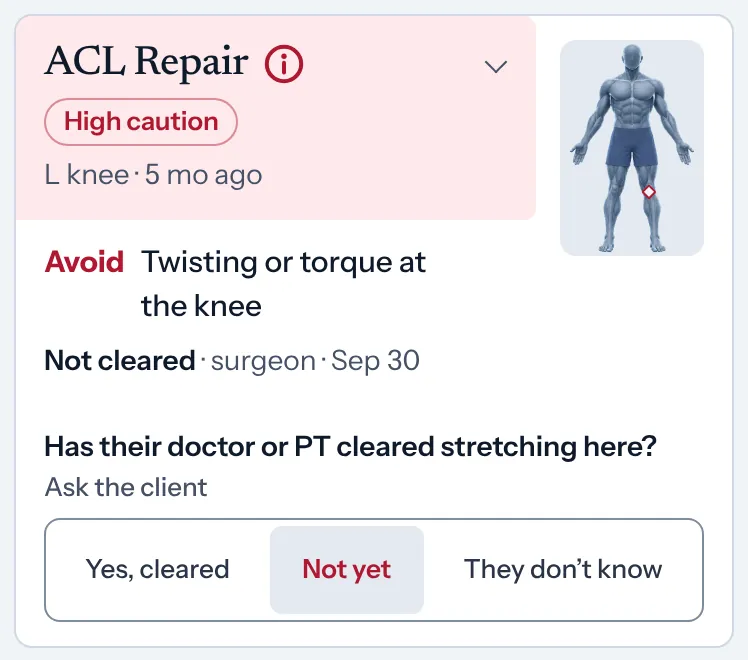
Your level decides. The app suggests High caution, Use care or Note only, and it never lowers a level on its own. A practitioner can raise a level but can’t set one below the suggestion; an owner or manager can, and the app asks once to be sure. When the brief asks you to confirm a level (Keep High caution, Keep Use care), actually look at it before you tap.
The macro goal and the micro issue
Every client has a macro goal, the thing that brought them through the door. Then micro issues crop up along the way. They overdid it, strained something lifting at home, stepped wrong on a stair. I deal with the micro issue right away, because that’s where clients feel the value. But I keep the macro goal in view the whole time so the work doesn’t drift off it. Once the micro issue is sorted, the sessions turn back to the big goal.
(I walk through a real one, a golfer with a calf strain, in how to write session notes fast.)
In Dorsova, each piece has its place:
- The macro goal is Why they’re here. It’s the first field on the client’s profile, and you edit it right there. Keep it specific and current: “Golf: more rotation, play better, protect the old low-back injury.” It shows at the end of every brief.
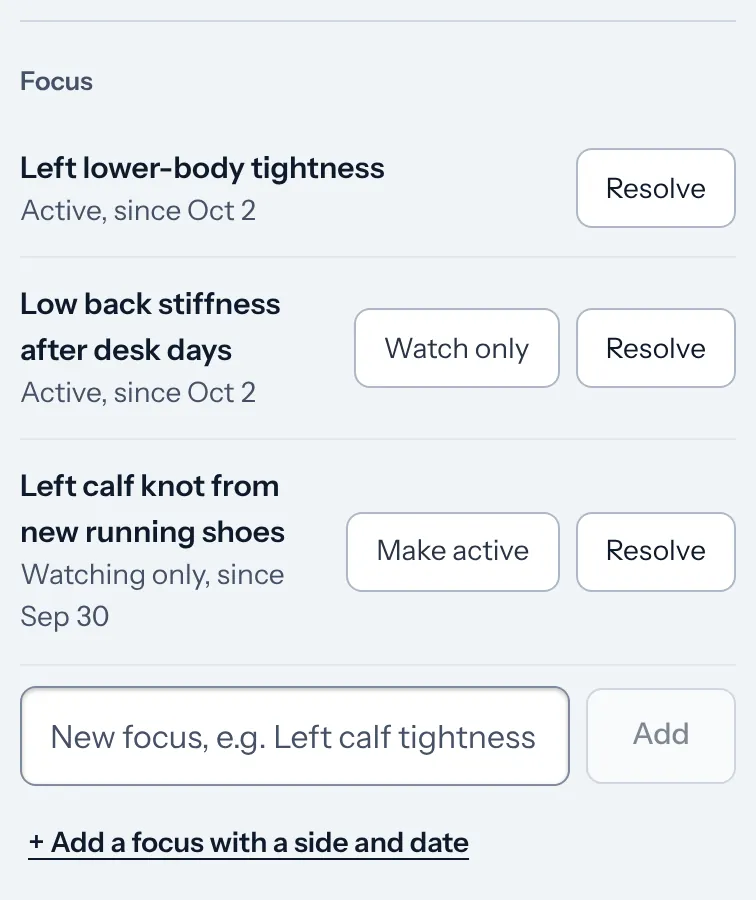
- The micro issue goes under Focus. Tap + Add a focus with a side and date. “Left calf strain, hiking,” side Left, since Oct 20, written the way the client reported it.
- Next time names both. “Recheck the left calf. Back to rotation work for golf once it’s easy.” That line becomes the next session’s plan.
- When it’s done, tap Resolve. Don’t delete it. It moves to the Resolved list and stays on record, so the next person knows that calf has history. Then point Next time back at Why they’re here.
Right after the session
Write the note straight away
By the end of the day, the left calf and the right calf have run together. Tap Write it on Today (or Start with … when more than one note is due), or the microphone beside the session, and get it done before the next client walks in.
Pick Quick to type, or Dictate to talk. Check the client’s name at the top. Then the four parts, Session note, Work performed, Response and Next time, or your company note style’s own sections.
Record the work in order, with the position
I write Work performed in the order I did it, one block at a time, with the position: face up, face down or seated. “Face up: hamstrings → hips. Face down: calves → massage gun on calves.” Written that way, the next practitioner can run the same session.
The order shows you the flow, too. Plan the session so the client turns over once at most. Do everything you can in one position before you move on. Every turn takes effort, especially for older clients and clients with injuries.
Say side, area and type
The body map is the heart of the history. In Dictate, it only marks itself when you say all three: the side, the area and what you found. “Left calf tight.” “Right upper trap, knot.” Leave one out and nothing gets marked, so say it every time.
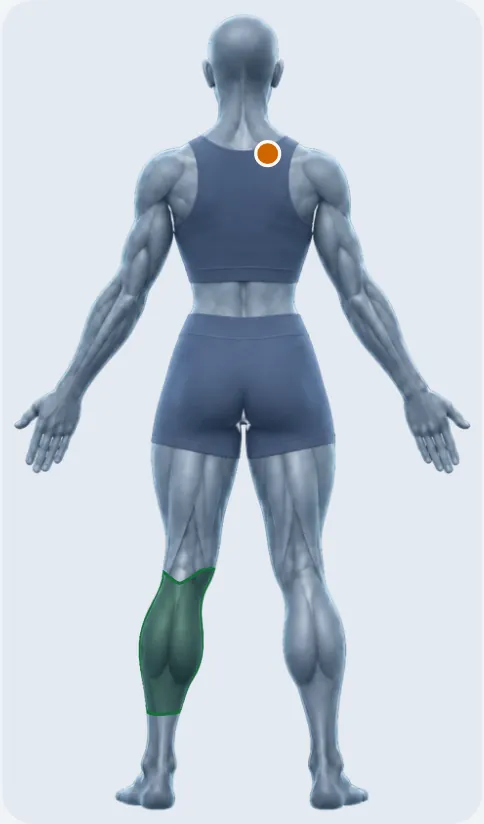
There are three kinds of mark: Tight, Knot and Client-reported pain. Pain is only ever what the client tells you. Each mark can take a rating from 1 to 5. Tight and knots get your rating, pain gets the client’s. Check the map before you save.
Same words, same scale, every time
If it’s “tight” today, don’t call it “restricted” next week. If a 3 means something to you, keep it meaning that. Then Body over time shows the client actually changing, and you won’t mistake a change in your wording for progress.
Make Next time specific
Next time is the most important line in the note. It turns into Plan for today in the next brief, for whoever sees them. “Continue” helps nobody. “Start with the left calf. Recheck hamstring range.” does. In Dictate, Dorsova offers ideas from your own words and last time’s open items. Nothing goes in unless you tap it.
Add anything personal as a follow-up saved as Ask about: “Ask how the recital went.” It comes back under Ask about next time.
Never skip “Intentional?”
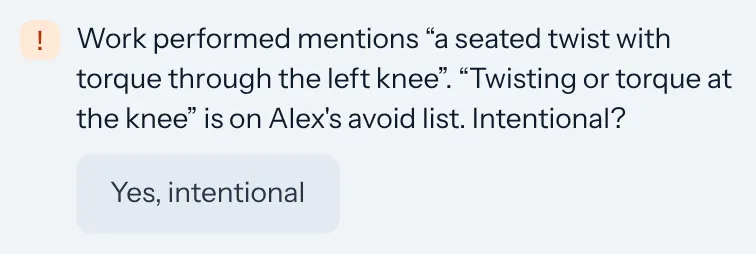
Before you save, Dorsova checks Work performed against the client’s own avoid list. If something on that list shows up, it asks Intentional? Be honest. If you meant it, tap Yes, intentional. If you didn’t, fix the note, or the plan for next time. It never blocks a save.
Aim for Nothing missing
The note check marks each note Nothing missing or Short on detail. A note has nothing missing when it has all three:
- A specific area, with a side, and what you found (or a mark on the body map).
- How the client responded, in your own words or one of the app’s one-tap lines; “no complaints” or “same as last time” on their own don’t count.
- A Next time that names something specific.
It’s short on detail when a part is only a vague phrase like “same as last time,” when it’s a near-copy of the last note, or when it’s very short. A note short on detail still saves, marked Short on detail. Add to it when you get a minute.
Save, then paste
Save note copies it for your booking software, and you’ll see “Copied. Paste it into your booking software.” Open the client there and paste. (Why the copy looks the way it does: session notes that paste cleanly into ClubReady.) If your studio wants it, Include Dorsova link (under Plain text and Dorsova link) adds a link back to the full note, which only opens for someone signed in who’s allowed to see it.
Range of motion: the same way every time
You can record two stretches from the body map’s Range tab: Hamstring (on their back, straight leg raised) and Quad (face down, knee bent toward the glute). Same test, same position, same way, both sides, every time. If you only add one side, Dorsova asks for the other.
The reading is an estimate by eye, for tracking progress. Not a clinical measurement. It’s useful because it’s consistent. Change the way you test and the chart stops meaning anything. I go into how I keep it consistent in tracking a client’s flexibility over time.
Over time
- Look at the history with the client. On the profile, Body over time and Range charts show what’s changed. Showing them beats telling them.
- Resolve things. Don’t delete them. When an issue or a focus is done, tap Resolve and it stays on record.
- Keep Why they’re here current. Goals change, so update it when they tell you.
- Bring your old notes in. Open the client on Clients, tap Add this client’s old notes and paste them in, so the first brief isn’t empty.
For owners and managers
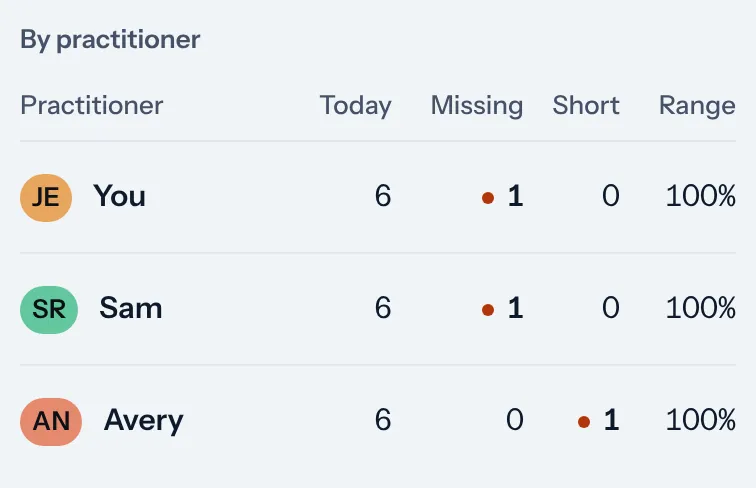
- Check the Dashboard every week. It shows Notes missing and Short on detail for this week, Monday to today, By practitioner. A missing note is a blank brief next week. Bring up notes short on detail early, while habits are still forming.
- Set one note style for the company (owners), or for your studio (managers, under Studio note style). In Settings, the Company note style sets the sections, titles and wording everyone writes in. When every note reads the same, anyone can pick one up.
- Handoffs work because the notes are complete. Every note says who wrote it and what to do next time, and it stays with your studio. A new practitioner sees the same brief as your most experienced one, as long as the notes behind it are good.
Dorsova AI
Dorsova AI can draft the note from what you dictated; it fills the note in when it’s ready, and Undo brings back your own words. It only organises what you said. It won’t add findings, techniques or results. Names and contact details are taken out on your device first.
Every draft is labelled “Drafted by Dorsova AI. Give it a quick read before you save.” Read all of it before you save. You were the one in the room.
My 60-second routine
Before each session:
- Open the brief. Read Avoid first.
- Check Plan for today. Ask what’s under Ask about, then tap Asked.
- Glance at Why they’re here.
Right after each session:
- Write the note before the next client.
- Work in order, with positions. Side, area and type for every finding.
- Make Next time specific. Name the micro issue and the macro goal.
- Answer “Intentional?” honestly. Aim for Nothing missing.
- Save note, then paste.
Every week:
- Update injuries, cautions and clearance when anything’s new.
- Resolve what’s done. Refresh Why they’re here.
- Owners and managers: check Notes missing and Short on detail on the Dashboard.